

What’s Supported
Supported Actions
This connector supports:- Read Actions, including full historic backfill. Please note that incremental read is supported for
repositoriesonly. For all other objects, a full read of the Bitbucket instance will be done for each scheduled read. - Write Actions.
- Proxy Actions, using the base URL
https://api.bitbucket.org.
Supported Objects
The Bitbucket connector supports reading from the following objects:- addon/linkers
- pipelines-config/variables
- repositories
- user/emails
- hook_events
- hooks
- members
- projects
Example integration
For an example manifest file of an Apollo integration, visit our samples repo on Github.Before You Get Started
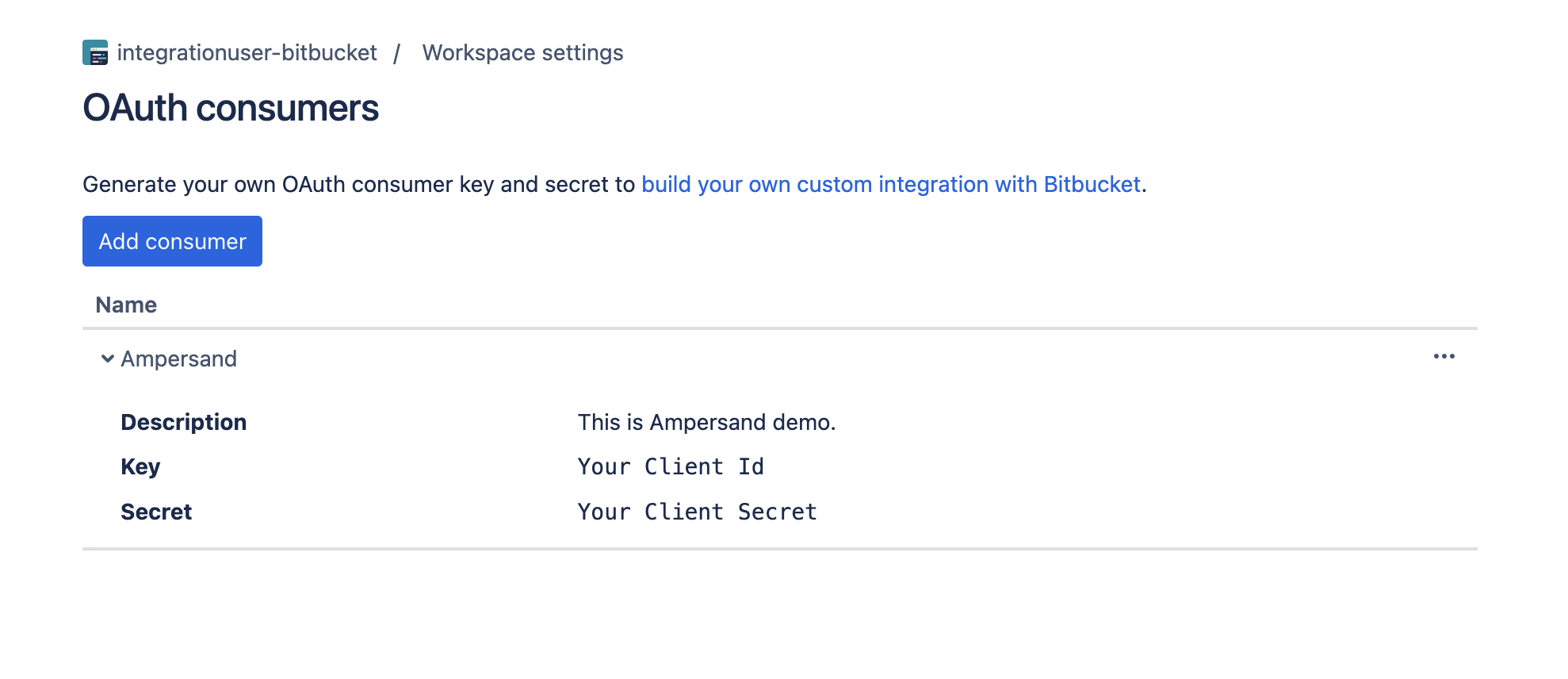
To connect Bitbucket with Ampersand, you will need a Bitbucket/Atlassian Account. Once your account is created, you’ll need to create an OAuth consumer in your bitbucket workspace, configure the app, and obtain the following credentials from your app:- Client ID
- Client Secret
Create a Bitbucket Account
Follow these steps to sign up for a Bitbucket account:- Go to the Atlassian website and sign up for a new account.
Register a Bitbucket OAuth App
Follow the steps below to register a Bitbucket OAuth app:- Log in to your Bitbucket account.
- Go to Workspace Settings by clicking the gear icon in the top-right navigation bar.
- Select OAuth consumers from the left sidebar then click Add consumer.
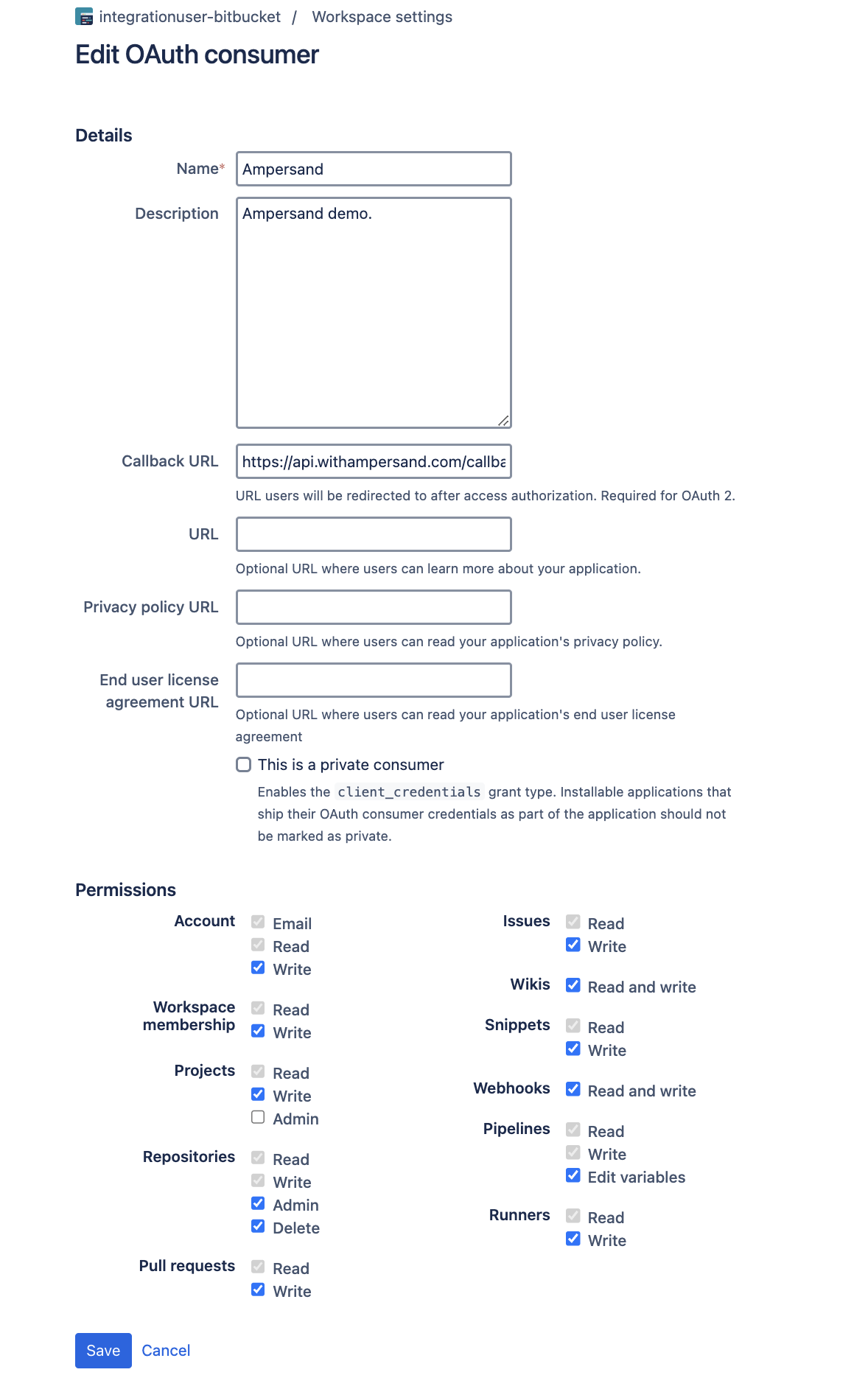
- Enter the following details in the create application form:
- Name: Enter a name for your app.
- Description: Provide a brief description of your app.
- Callback URL: Enter the Ampersand redirect URL:
https://api.withampersand.com/callbacks/v1/oauth.
- Select the permissions you want to grant to your app.
- Click Save.
Add Your Bitbucket App Info to Ampersand
- Log in to your Ampersand Dashboard.
-
Select the project where you want to create a Bitbucket integration.\

- Select Provider Apps.
- Select Bitbucket from the Provider list.
-
Enter the previously obtained Client ID in the Client ID field and the Client Secret in the Client Secret field.
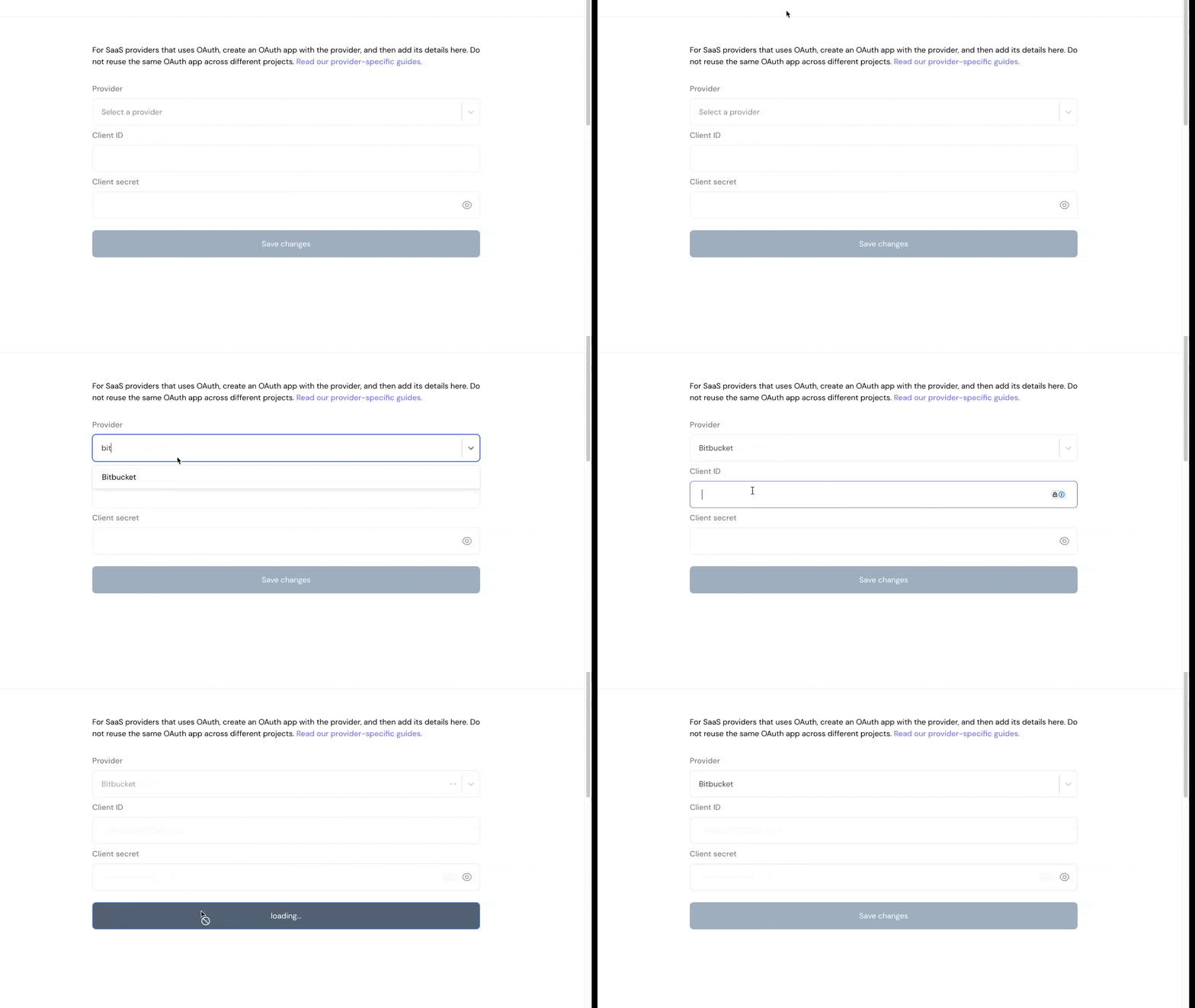
- Click Save Changes.