

What’s Supported
Supported Actions
This connector supports:- Read Actions, including full historic backfill. Please note that incremental read is only supported for the
transactionsobject. - Write Actions.
- Proxy Actions, using the base URL
https://adsapi.snapchat.com.
Supported Objects
The Snapchat Ads connector supports writing to and reading from the following objects:- fundingsources (read)
- billingcenters (read, write)
- transactions (read)
- adaccounts (read, write)
- members (read, write)
- roles (read, write)
- targeting/demographics/age_group (read)
- targeting/demographics/gender (read)
- targeting/demographics/languages (read)
- targeting/demographics/advanced_demographics (read)
- targeting/device/connection_type (read)
- targeting/device/os_type (read)
- targeting/device/carrier (read)
- targeting/device/marketing_name (read)
- targeting/geo/country (read)
- targeting/interests/dlxs (read)
- targeting/interests/dlxc (read)
- targeting/interests/dlxp (read)
- targeting/interests/nln (read)
- targeting/location/categories_loi (read)
Example Integration
For an example manifest file of a Snapchat Ads integration, visit our samples repo on Github.Before You Get Started
To integrate Snapchat Ads with Ampersand, you will need a Snapchat Business Account. Once your account is created, you’ll need to create a Snapchat Ads app and obtain the following credentials:- Client ID
- Client Secret
- Scopes
Create a Snapchat Business Account
If you don’t already have a Snapchat Business Account:- Go to the Snapchat Business website.
- Click on Get Started and follow the prompts to create your account.
Creating a Snapchat Ads App
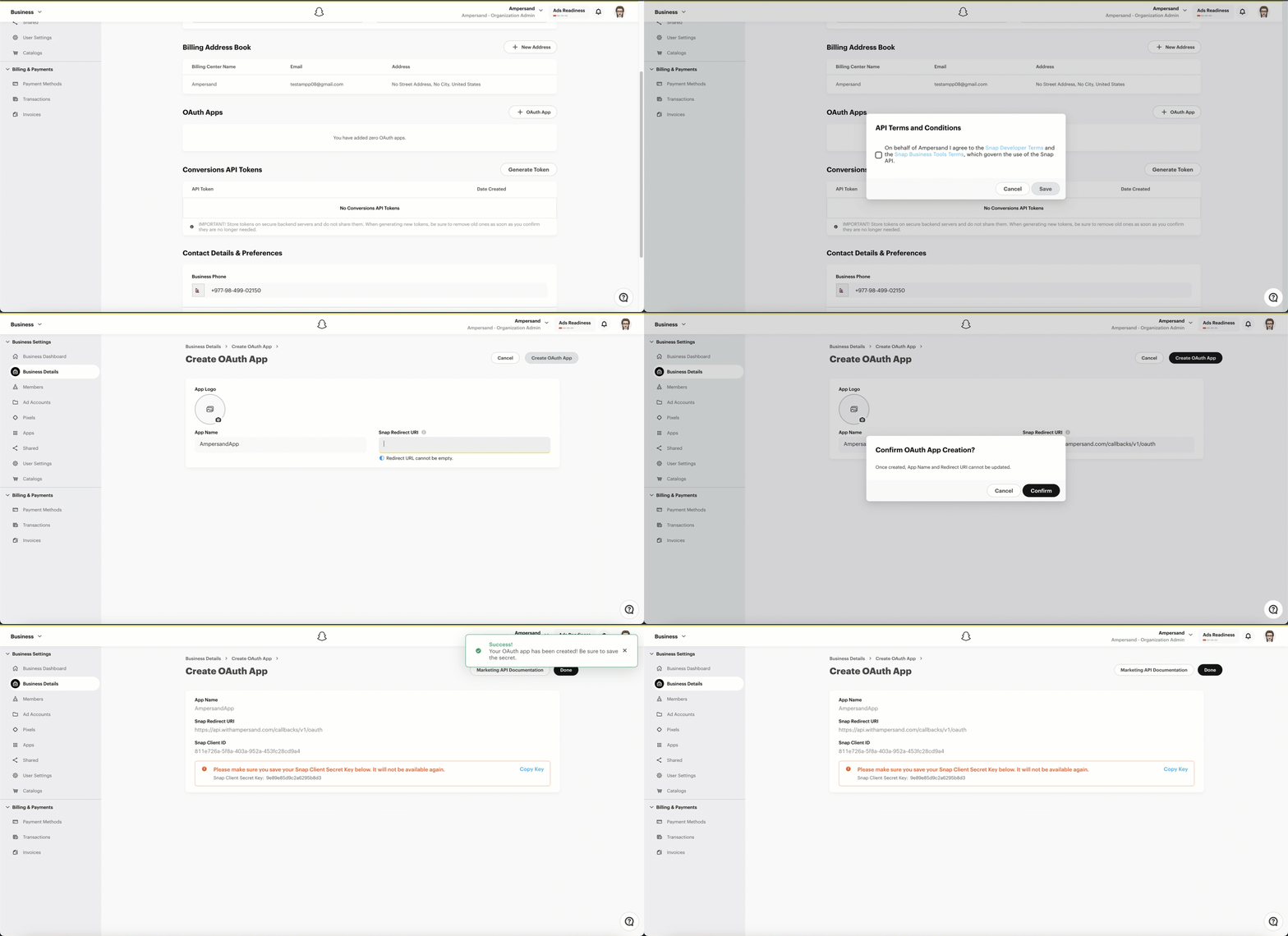
Follow the steps below to create a Snapchat Ads app:- Go to the Snapchat Business Manager.
- Navigate to Business Settings > Business Details.
- Under Oauth Apps, click + Oauth App.
-
Fill in the required information:
- App Name
- OAuth 2.0 Redirect URI: Enter
https://api.withampersand.com/callbacks/v1/oauth
- Click Create Oauth App.
Add Your Snapchat Ads App Info to Ampersand
- Log in to your Ampersand Dashboard.
- Select the project where you want to create a Snapchat Ads integration.
- Select Provider Apps.
- Select Snapchat Ads from the Provider list.
- Enter the previously obtained Client ID in the Client ID field and the Client Secret in the Client Secret field.
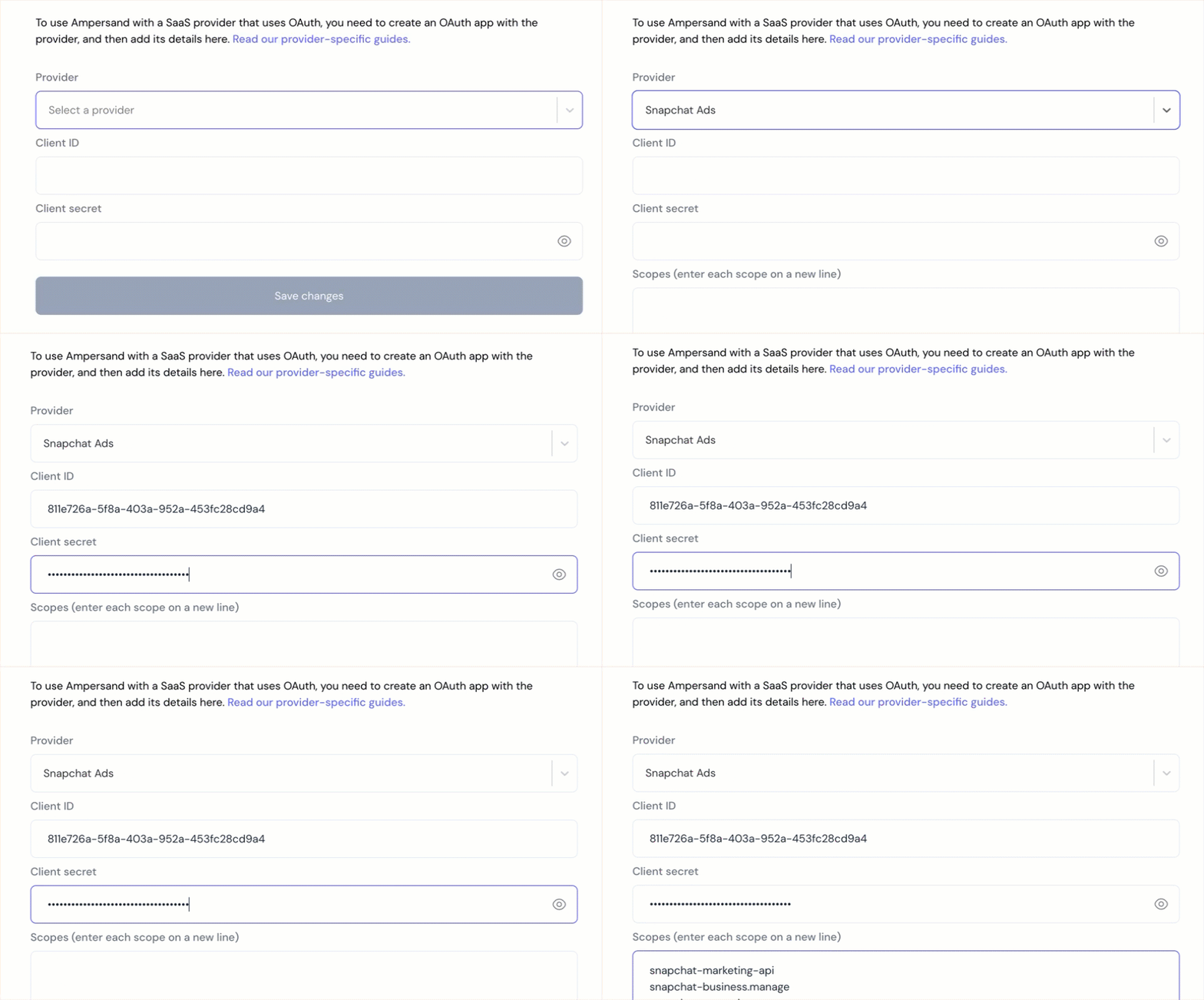
- Enter the scopes set for your application in Snapchat.
- Click Save Changes.
Using the connector
To start integrating with Snapchat Ads:- Create a manifest file using the example.
- Deploy it using the amp CLI.
- If you are using Read Actions, create a destination.
- Embed the InstallIntegration UI component.
- Start using the connector!
- If your integration has Read Actions, you’ll start getting webhook messages.
- If your integration has Write Actions, you can start making API calls to our Write API.
- If your integration has Proxy Actions, you can start making Proxy API calls.